E2E Encryption
Personal information collected during a verification is locked before it leaves the end user's phone. This page explains why, how a passphrase protects your results with nothing to install, and — if you prefer to manage cryptographic keys yourself — how to create a key and use it, step by step.
Why We Encrypt Personal Information
Encryption scrambles data so it's unreadable to anyone who doesn't hold the right key. End-to-end (E2E) encryption means that scrambling happens on the sender's device, and the data stays scrambled the whole way to the person who is meant to read it. Everything in between — networks, servers, databases, backups — only ever sees gibberish.
In a verification, the "sender" is the person being verified. Their browser encrypts the personal information read from their license before it's sent to us. We store and forward the encrypted result. We never receive a readable copy.
We do this for every verification that collects personal information, because:
- It limits the damage of a breach. A stolen database full of encrypted data is useless without the key.
- It builds trust. Your users are handing over a driver's license. "Even the verification service can't read it in transit" is an easy promise to keep when it's enforced by math.
- It's enforced, not optional. Our server rejects any submission that should have been encrypted but wasn't, so a modified browser can't quietly send plaintext.
Passphrase vs. Your Own Key
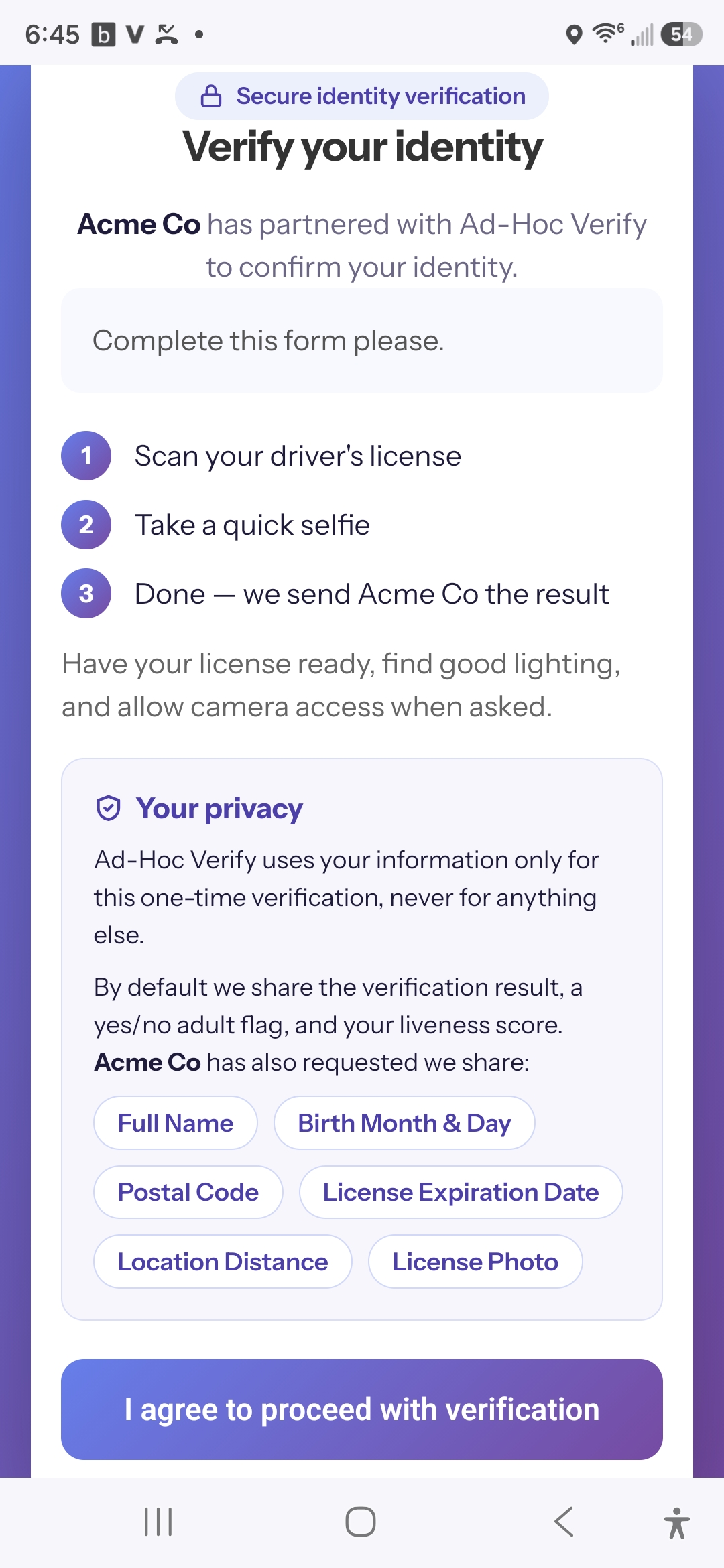
Every verification that collects personal information is encrypted so that only you can read it. You choose how per template or per request in the PII encryption setting.
| Passphrase (default) | Your own key | |
|---|---|---|
| Setup | Type a passphrase when you create the template or request. Nothing else. | Create a key pair once and add the public half to your account. |
| Who can decrypt | Only you, by entering the passphrase. We hold nothing that can unlock the data. | Only you, with your private key. We hold nothing that can unlock the data. |
| Viewing results | Enter the passphrase on the Requests page. Your browser rebuilds the key and decrypts locally. | Paste your private key into your browser on the Requests page. |
| Webhook & email | The encrypted data is included, with the key details needed to derive the key from your passphrase. | The encrypted data is included, so your own systems can decrypt it. |
| If you lose access | If the passphrase is lost, the data can't be recovered by anyone. | If the private key is lost, the data can't be recovered by anyone. |
Passphrase
Good for
- Getting true end-to-end encryption with nothing to set up
- Teams that review results by hand on the website
- Never handling key files
Trade-offs
- You must remember or safely store the passphrase (a password manager works well)
- Use a long, unique passphrase: the saved public key allows offline guessing, so strength matters
Your own key
Good for
- Automatically receiving and decrypting results in your own software
- Key management policies, hardware keys, or rotation schedules
- Meeting policies that require you to hold a real private key
Trade-offs
- You must create, store, and protect the private key
- A lost private key means permanently unreadable data
How a passphrase becomes a key
When you save a template or request that collects personal data, your browser stretches your passphrase (Argon2id, with a random salt) into a one-off key pair. Only the public half and the salt are saved. The private half is discarded immediately. To view results, you enter the same passphrase and your browser recreates the identical private key, then decrypts locally. The passphrase and private key never leave your browser.
To avoid retyping, you can choose to remember a key in this browser. Cached keys can't be exported, are cleared when you sign out, and can be wiped any time from the Encryption keys page, where you can also choose to keep them on this device across sign-outs.
API users: requests created through the REST API must
reference a key. Use encryption_key_mode: "passphrase" with the
id of a passphrase key created in the dashboard, or "custom" with your own public key. The older shared platform key is no longer
available for new verifications.
How Public and Private Keys Work
Your own key is really a pair of keys that are created together and mathematically linked:
- The public key is like an open padlock. You can hand copies to anyone. Anyone holding it can snap it shut around some data, but nobody can use it to open anything.
- The private key is the only key that opens that padlock. It stays with you.
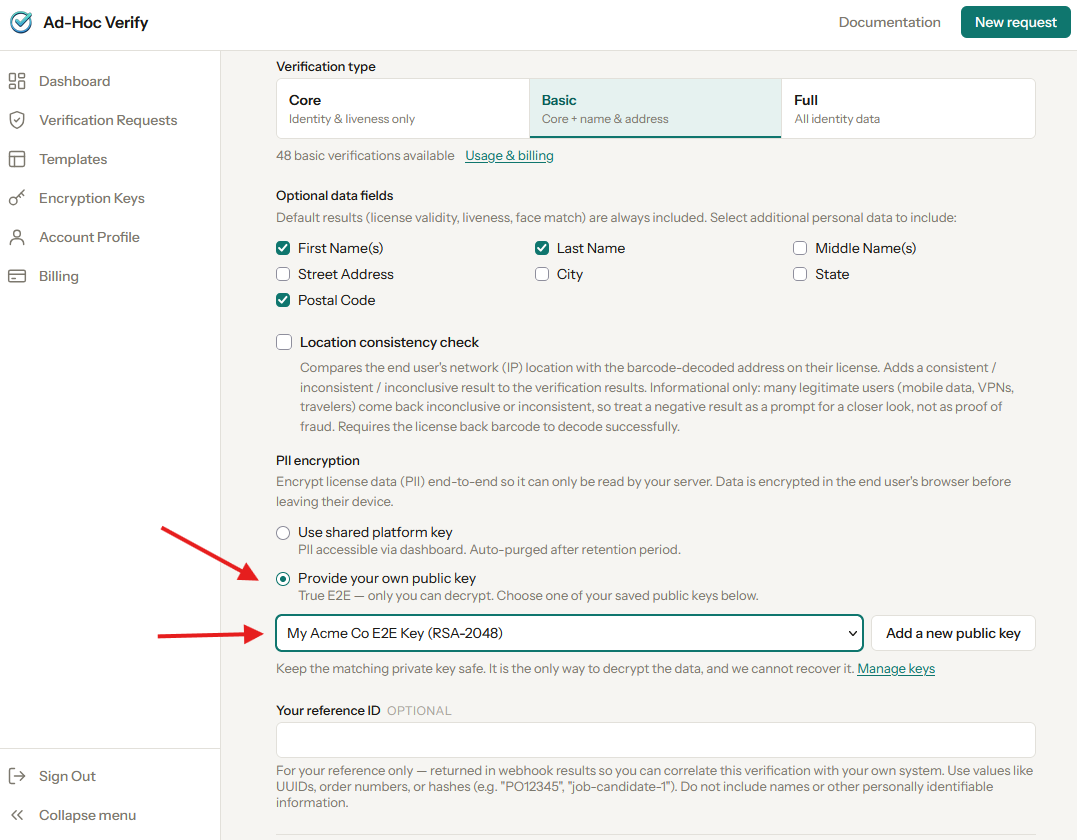
You give us the open padlock (the public key). The end user's browser uses it to lock their information and sends us the locked box. We can pass the box along, store it, and show you that it exists, but without your private key, we cannot open it, and neither can anyone who breaks into our systems.
Create Your Key Pair
You only do this once. It takes about a minute and uses a tool that's already on your computer. You'll end up with two files in your home folder:
adhoc-verify-key— your private key. Keep it secret.adhoc-verify-key.pub— your public key. This is the one you give to us.
Don't worry about what the options mean. -m PEM saves the private
key in the format our website understands, and -b 4096 makes a
strong key.
On a Mac
- Press Cmd + Space, type Terminal, and press Return.
- Copy the command below, paste it into Terminal, and press Return:
ssh-keygen -t rsa -b 4096 -m PEM -f ~/adhoc-verify-key
- It will ask for a passphrase twice. Press Return both times to leave it blank. (Our website can't open keys that are protected with a passphrase.)
- Copy your public key to the clipboard so you can paste it into Ad-Hoc Verify:
pbcopy < ~/adhoc-verify-key.pub
Your files are in your home folder. In Finder, choose Go → Home. Files starting with a dot are hidden, but these two aren't.
On Windows
- Click Start, type PowerShell, and open Windows PowerShell.
- Copy the command below, paste it into PowerShell (right-click pastes), and press Enter:
ssh-keygen -t rsa -b 4096 -m PEM -f "$HOME\adhoc-verify-key"
- It will ask for a passphrase twice. Press Enter both times to leave it blank. (Our website can't open keys that are protected with a passphrase.)
- Copy your public key to the clipboard so you can paste it into Ad-Hoc Verify:
Get-Content "$HOME\adhoc-verify-key.pub" | Set-Clipboard
Your files are in C:\Users\your-name. If PowerShell
says ssh-keygen isn't recognized, open Settings →
Apps → Optional features, add OpenSSH Client,
and try again.
adhoc-verify-key (no .pub) in your password manager
or another secure place, before you add the public key to your account.
If a command asks whether to overwrite an existing file, stop and choose a
different name. Overwriting a key you already use would destroy it.Already use OpenSSL? That works too. Any RSA key of 2048 bits
or more is accepted, in either PEM or ssh-rsa format. The private key
must not be passphrase-protected.
Add Your Public Key
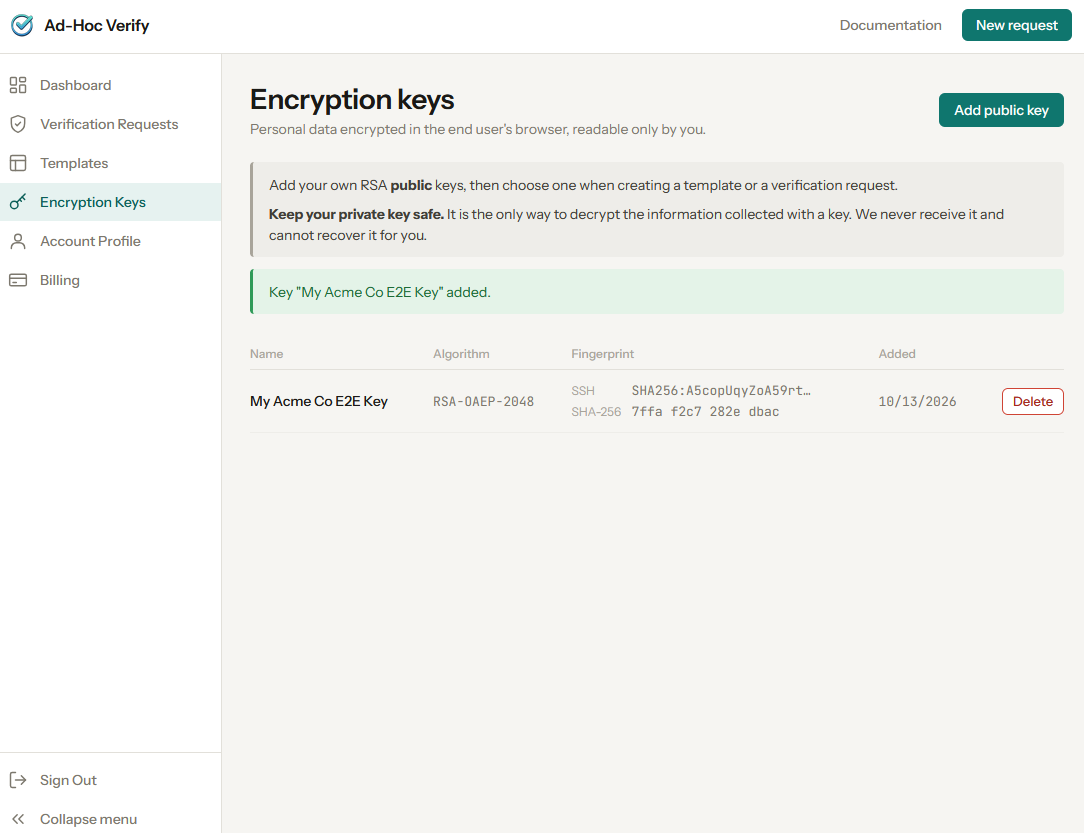
- Open the Keys page in your dashboard and click Add public key.
- Give it a name you'll recognize, like "Production 2026". This friendly name appears when you choose a key, in your webhook and notification emails, and when you decrypt results, so you always know which key goes with which data.
- Paste the contents of your public key
(
adhoc-verify-key.pub). It looks like one long line starting withssh-rsa. The PEM format (-----BEGIN PUBLIC KEY-----) works as well. - Click save.
Once saved, the key shows two fingerprints: short IDs for the key. Think of them as its name tag. The SSH fingerprint is the one printed by the tool you just used. To confirm that a key on this page matches a key file on your computer, run:
Mac
ssh-keygen -lf ~/adhoc-verify-key.pub
Windows
ssh-keygen -lf "$HOME\adhoc-verify-key.pub"
The SHA256:… value it prints should be identical to the SSH
fingerprint shown here.
Finally, choose your key when you create a template or a verification request: set Encryption to your own key and pick it from the list.
Viewing Encrypted Results
Results encrypted with your key are readable in your browser whenever you have your private key to hand:
- On the Requests page, open a completed verification's Results. The License data section says it's encrypted.
- Click Decrypt with private key.
- You'll see the name and fingerprints of the key this verification was encrypted with. If you aren't sure which private key that is, the Keys page can help you match it.
- Copy your private key to the clipboard.
Mac
pbcopy < ~/adhoc-verify-key
Windows
Get-Content "$HOME\adhoc-verify-key" -Raw | Set-Clipboard
Or open the file in any text editor and copy everything, including theBEGINandENDlines. - Paste it into the box and click Decrypt. The details appear in place.
If Decryption Doesn't Work
The page tells you what went wrong. Here's what each message means:
| Message | What to do |
|---|---|
| This private key doesn't match the public key this verification was encrypted with. | The key is valid, just not the right one. Check the name and fingerprints shown above the box and use the matching private key. |
| That is a public key. | You pasted the .pub file. Paste the file without .pub. |
| Could not read this as an RSA private key. | The text is incomplete. Copy the whole file, including the BEGIN and END lines. |
| Passphrase-protected keys are not supported. | Create a key without a passphrase, as described above, or remove the passphrase from your existing one with ssh-keygen -p -m PEM -f yourkey and leave the new passphrase blank. |
| This key is in OpenSSH's newer format. | The key was created without -m PEM. Make a copy of the file, then convert the copy with ssh-keygen -p -m PEM -f yourkey (leave the passphrase blank), or create a new one using the command above. |
| The encrypted data is corrupted or has been altered. | The key is right but the stored data failed its integrity check. Contact support with the verification ID. |
Decrypting in Your Own Systems
Because the webhook and notification email carry the encrypted data when you
use your own key, you can decrypt automatically in your own software. The
payload includes an encryption_key block with the key's name and
both fingerprints so your code can pick the right private key. See Webhooks for the payload and the API Reference for the encryption
format.
The cropped headshot from the license is delivered encrypted too. The dashboard decrypts it, along with the license and phone details, in your browser once you enter your passphrase or private key.