Getting Started
Get your account set up and ready to send verification requests in just a few minutes.
1. Create Your Account
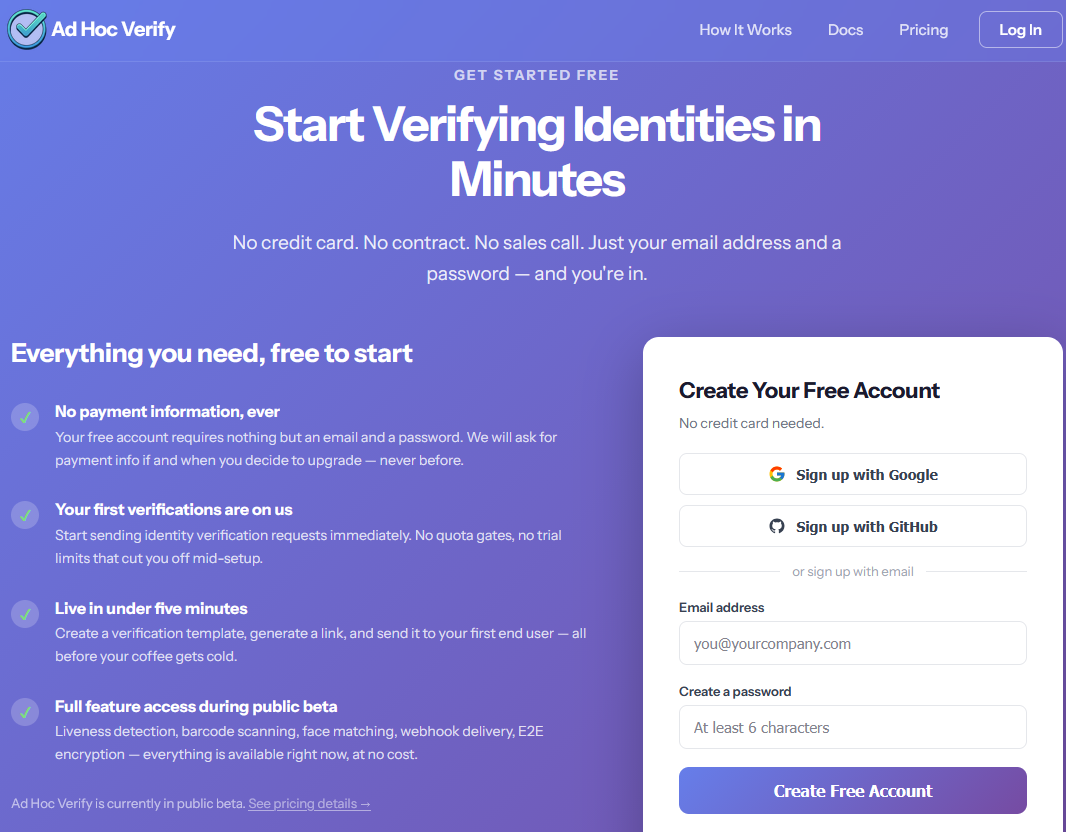
Head to the login page and sign up with your email address and a password. You'll receive a confirmation email — click the link to verify your email and activate your account.
2. Set Up Your Profile
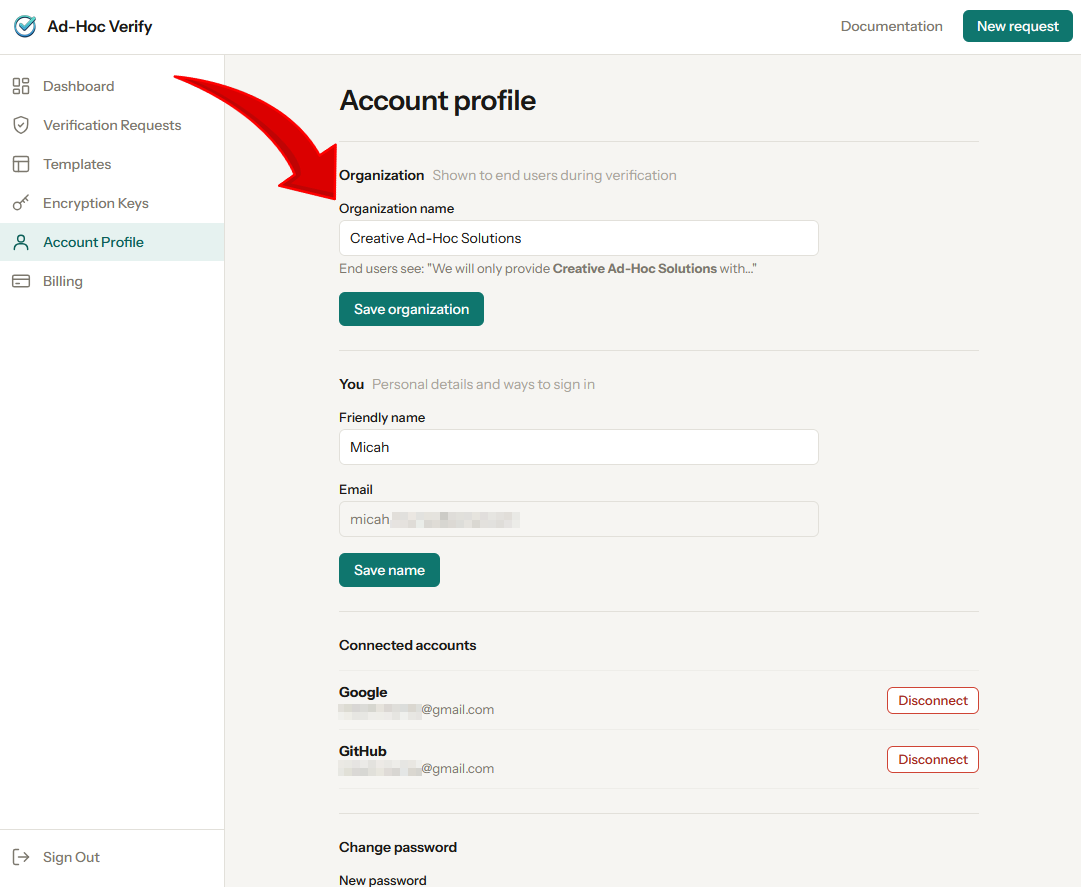
This is an important step that's easy to overlook. Navigate to the Profile section from the top navigation and enter your company name.
You can also set an optional display name if your company has a shorter name or brand name you'd prefer to show.
3. Explore the Dashboard
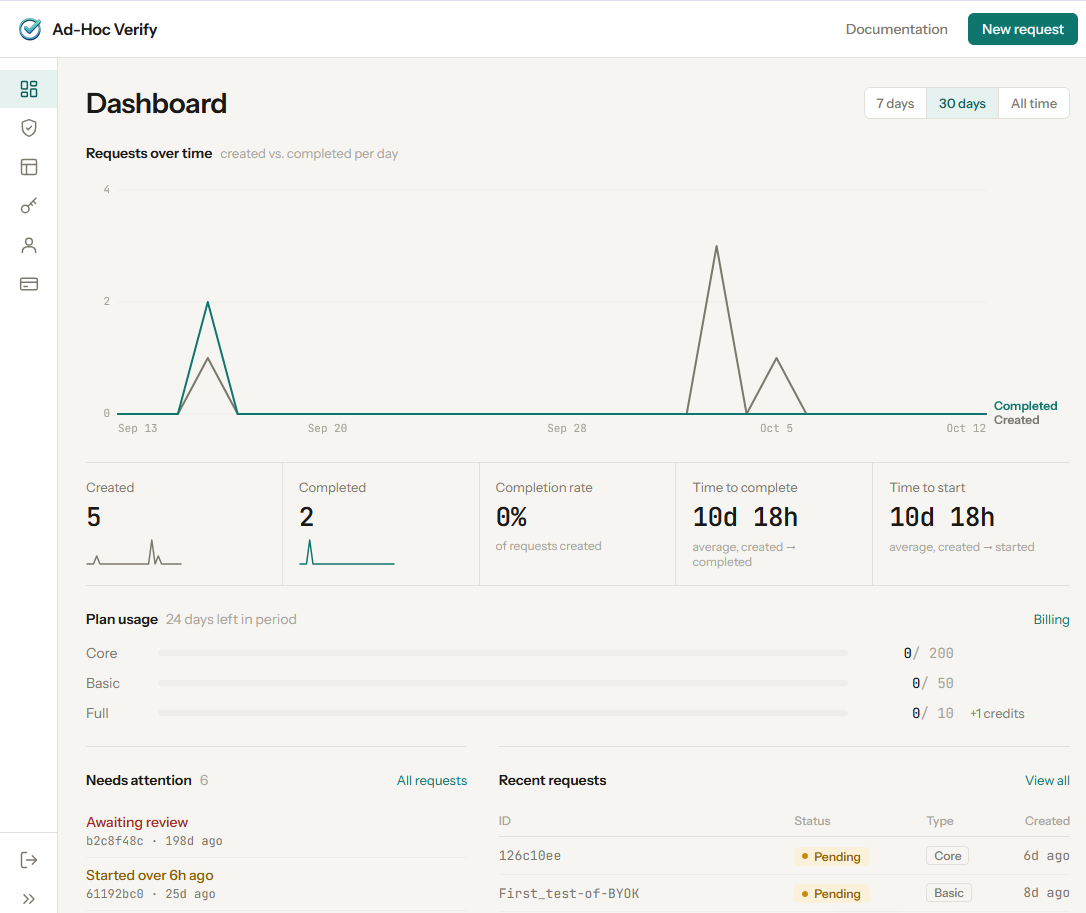
Once your profile is configured, you'll land on the Dashboard. From here you can see an overview of your verification activity and navigate to:
- Requests — Create and manage verification requests
- Templates — Save reusable verification configurations
- Profile — Update your company information
4. (Optional) Create a Template
If you'll be sending similar verification requests repeatedly, consider creating a template first. Templates let you save:
- Which personal information fields to request (name, DOB, address, etc.)
- A custom message shown to the end user on the consent screen
- A webhook URL where results are automatically delivered
- Encryption settings for end-to-end encrypted PII delivery
- Whether to require phone verification via SMS
You can always create a verification request without a template — templates just make it faster when you're doing the same thing repeatedly.