Your First Verification
Walk through creating a verification request, sharing the link, and getting the result.
1. Navigate to Requests
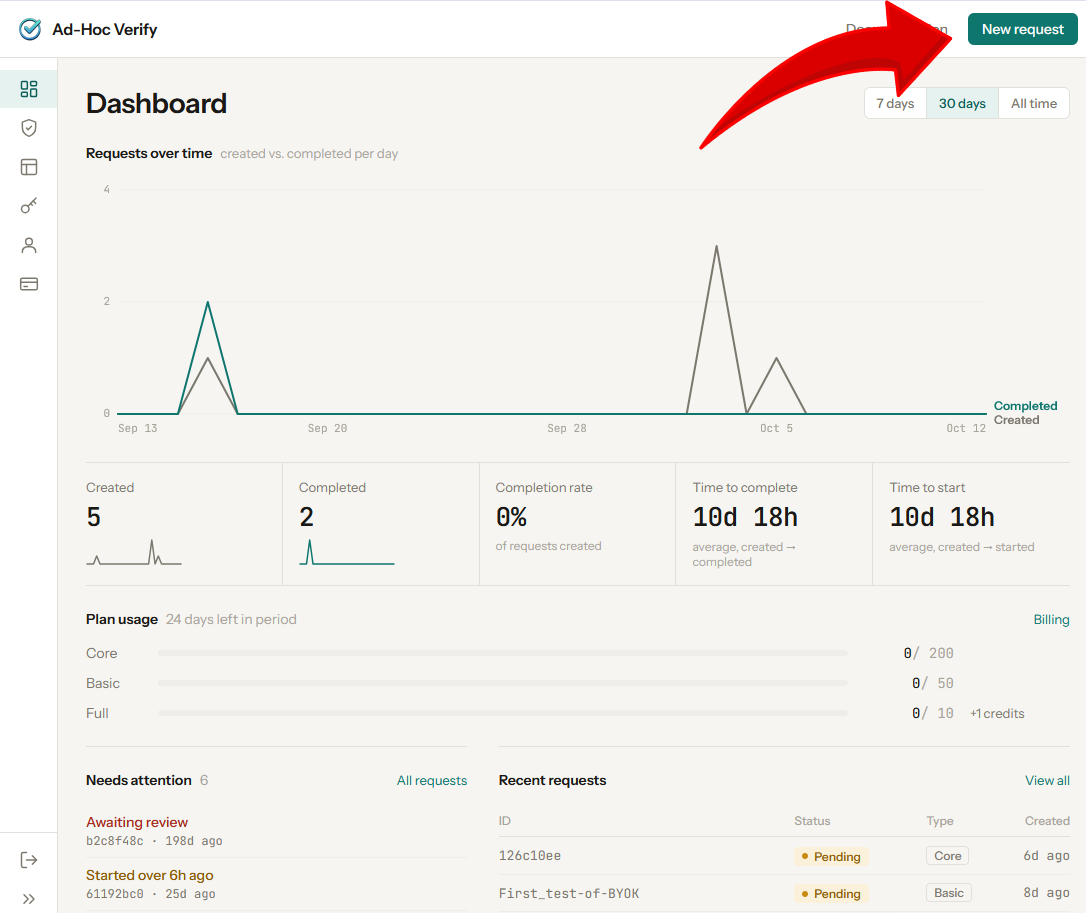
From the top navigation, click Requests. This is where you'll see all of your verification requests and their current status. Click the New Request button to get started.
2. Configure Your Request
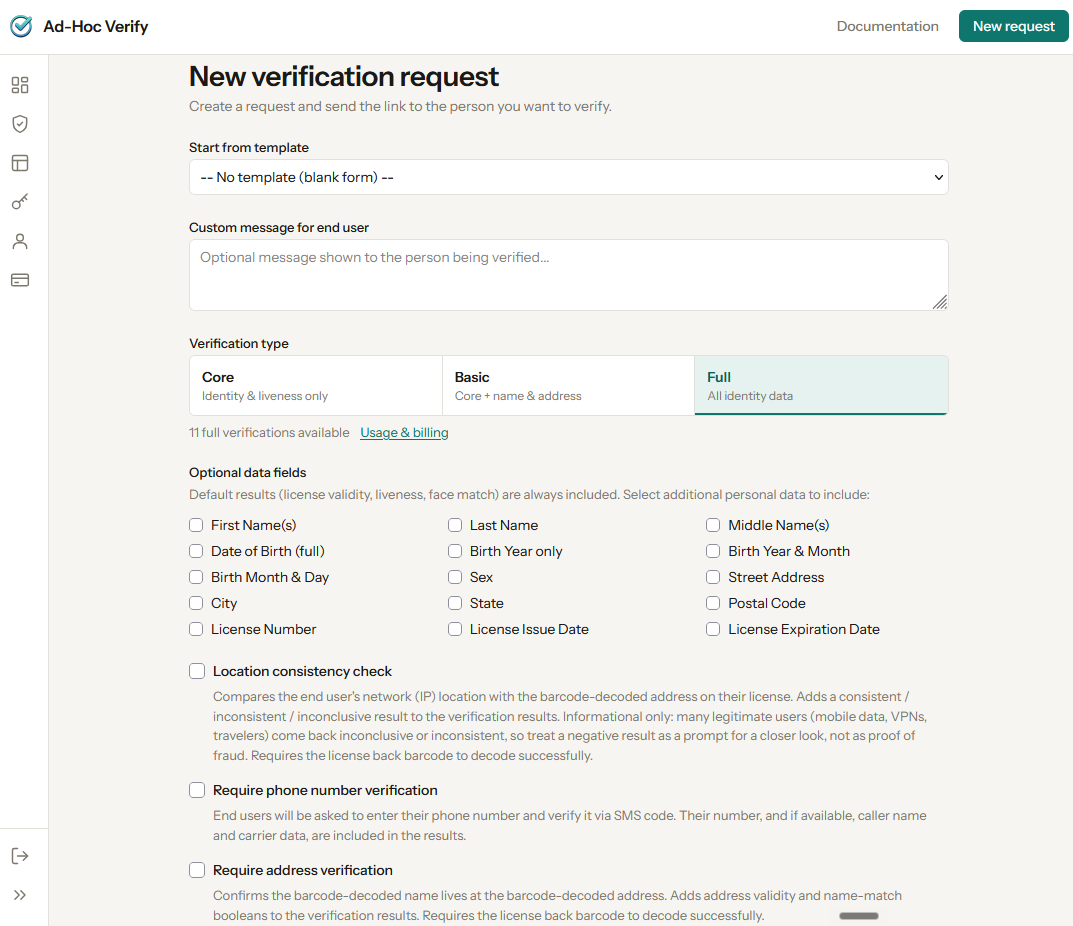
On the new request page, you'll configure what information you need from the person being verified.
Choose a Template (Optional)
If you've already created a template, you can select it to pre-fill the settings. Otherwise, configure everything manually.
Select Information Fields
Choose which personal information fields you'd like to collect. Every verification automatically includes the core results:
- Whether the license appears to be a real document
- Whether the license is expired
- Whether the selfie appears to be from a live person
- Whether the selfie face matches the license photo
- Face match confidence score
Beyond these core results, you can optionally request fields from the user's license, such as:
- Full name (first, middle, last)
- Date of birth
- Address
- License number
- License expiration date
- And more
Add a Custom Message (Optional)
You can write a short message that will be shown to the user on the consent screen. This is a good place to explain why you need their identity verified — for example, "This verification is required to complete your employment onboarding."
Set a Webhook URL (Optional)
If you'd like results delivered automatically to your system, enter a webhook URL. When the verification completes, we'll POST the results as JSON to that URL. If you don't set a webhook, you can still view results on your dashboard.
3. Create and Share the Link
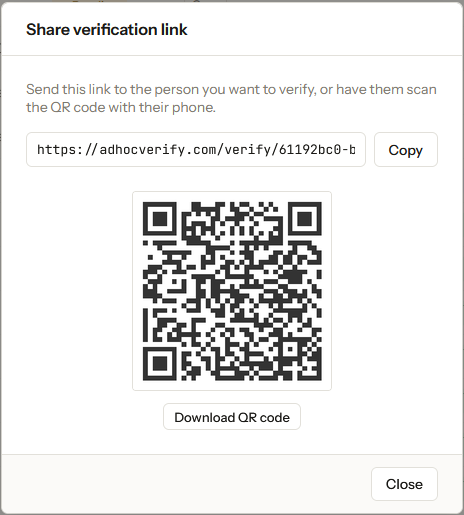
Once you've configured the request, click Create Request. You'll receive a unique verification URL — something like:
Share this link with the person you need to verify. They can open it on their phone and complete the entire process in their browser — no app to install.
4. What the End User Sees
When the person opens the link, they'll go through a guided flow:
- Consent — They see your company name, the data you've requested, and your custom message. They must agree before proceeding.
- License Front — They use their phone's rear camera to scan the front of their driver's license. The app guides them to align the card and checks for glare.
- License Back — They flip the card over so the barcode can be scanned for data verification.
- Selfie — They switch to the front camera and complete a liveness challenge (blink + head movement) to prove they're physically present.
- Processing — The face on the license is compared to the selfie, and all results are assembled.
- Done — They see a confirmation screen. Results are delivered to you.
5. View the Results
Once the end user completes verification, you can see the results in two places:
- Dashboard — The request status updates to "completed" and you can click into it to see the full results.
- Webhook — If you configured a webhook URL, the results are POSTed there as JSON in real time.
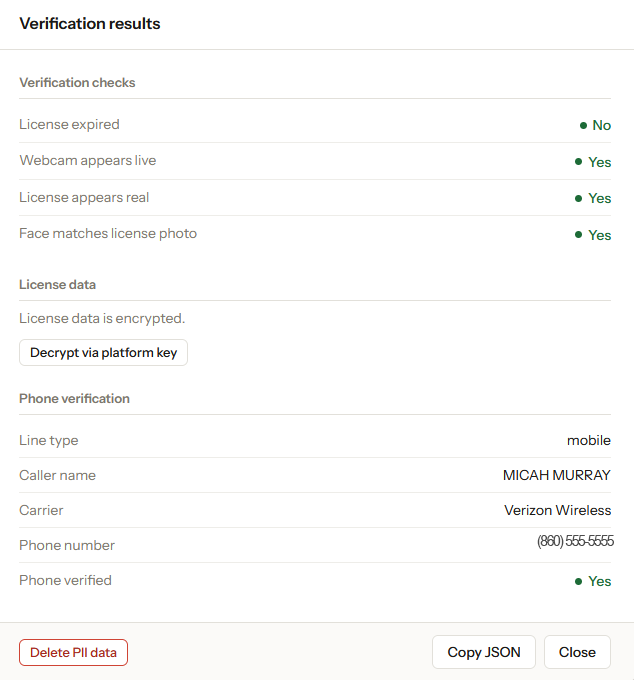
The results include the five core verification signals plus any personal information fields you requested. If a face match failed, the end user had the option to submit for manual review — you'll see that reflected in the status.